Getting Started Account Book
Step 1 - Manage Fiscal Year
-
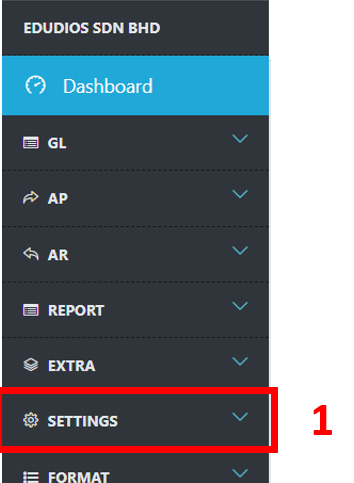
Go to Navigator Bar to find & click Settings > Manage Fiscal Year.

-
You can start manage your fiscal year. You can create the new fiscal year.
-
Important : You need to check the "First Fiscal Year" correctly because it will affect second fiscal year.
-
Example : When you create new precious fiscal year. New fiscal year couldn't edit the end date because it need to link will the next fiscal year. 
-
If you want to edit the fiscal year, you click the edit button then you can edit the date & name. Finish the edit click submit button to save the update information.
Step 2 - Manage Account Code Format
-
Go to Navigator Bar to find & click Settings > Setting.
-
When you view this page, please click account code format to do setting.
-

-
The system will set the default format for you when you create need account book.
-
If you want to change the chart of account code format, you can edit in account code format (red color box).
-
If you want to change the debtor or creditor format, you can edit the the automatic generate debtor / creditor code format (yellow color box).
-
When you edit the format, you need to follow the standard at the table. 
Step 3 - Manage Journal & Account
-
Go to Navigator Bar to find & click Settings > Setting.
-
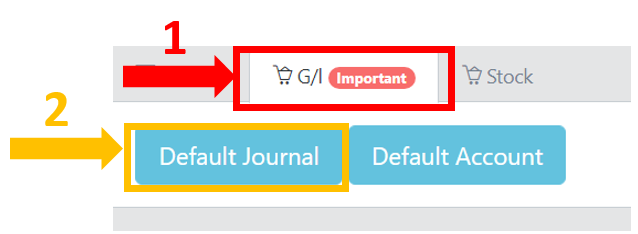
When you view this page, please click G/L > Default Journal to do journal setting.

-
-
When you view this page, please click G/L > Default Account to do account setting.


Step 4 - Manage Stock Setting
-
Go to Navigator Bar to find & click Settings > Setting.
-
When you view this page, please click Stock > General Stock Setting to do setting. 
-
The system will set the default format for you when you create need account book.
-
If you want to change the stock code format, you can edit in stock code format (red color box).
-
When you edit the format, you need to follow the standard at the table.

Step 5 - Manage Number Format
-
Go to Navigator Bar to find & click Format > Number Format.
-
System will have a set default number format for you. Number format will using in the document number.
-
Example: I - 0001. 
-
If you want to change the format or add date into format then go to edit it.
-
Format standard need to follow the remark table.
-
If every month the number need to reset. The manually set next number need to set to "YES".
-
After save, you can set the monthly number.
-
